|
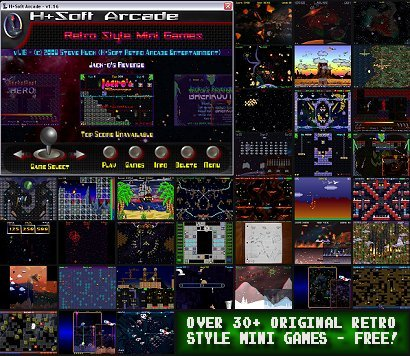
Selecting Games: You
can change the current game selection by clicking the
Joystick Selection
Arrows
or by pressing the Left and
Right Arrow Keys
on your keyboard.
Playing Games:
Click on the center screen shot or 'Play' from the
Bottom Console menu. This will launch
the current game. You can also launch the
current game by pressing the 'Space Bar' or the 'Enter'
key.
Adding Games:
Did
you know you can download all the games at once?
Download the H+Soft Arcade Full Install in the
H+Soft Arcade Downloader!
Step
1: If you
are connected to the internet, click on 'Games'. You will be taken to the home
page of this web site. Skip this step if you're
here and this website is already open!
Step
2:
Browse the H+Soft 2D-3D Download Galleries (starting on the
Home Page) to find a game you would like to Install. Then, click on the screen shot of
the game you want.
Step
3:
Click on 'Download/Install to H+Soft Arcade' and then 'Run' or 'Save'
to start the download. Wait for the download to
complete, then follow through with the install. If
you 'Saved' the download be sure to actually RUN the
install program for the game from where you saved it, or H+Soft Arcade
will never find it!
Step
4:
Run H+Soft Arcade and the game will be installed and
ready to play. If you have H+Soft Arcade running,
Re-Open the program and click on 'Update' from the
'Update the Game Directory Now?' prompt. If you
didn't get the prompt, update the game directory
from the main menu.
Game Info: If
you are connected to the internet, click on 'Info'. You will be taken to the most
recent help and version info page for the selected game
at this website.
Deleting Games:
Click on 'Delete'. You will go to
the game deletion prompt. Click on 'Delete' to remove
the game folder from H+Soft Arcade and your hard drive.
Top Scores: Most
games support the players top score and initials
in H+Soft Arcade. To reset (delete) a top score
Right Click on 'Play' or the Screen Shot of the
selected game and then click on 'Reset' from
reset top score prompt.
Back Drops:
You can customize the H+Soft Arcade back drop
image! Go to Menu >> Performance/Display
Settings. Then click 'Back Drop Image' to toggle
between the Default image or your Custom image!
Visit the
Photo Gallery
for info.
Main Menu:
Click on 'Menu'. The menu is as follows:
Return To Arcade:
This exits the menu and returns you to the game
selection screen.
Update Game
Directory: This is used if you have recently
Updated or Installed
new games while H+Soft Arcade is running or
minimized.
Read Instruction
Manual:
If you are connected to the internet, This option
takes you to this web page for the latest Help and Version
Updates
(if any) for H+Soft Arcade.
Performance/Display Settings:
Here
you can set the arcade and game timing performance or game graphics display to full screen or windowed, you can also customize the H+Soft Arcade back
drop image.
NOTE:
Windowed and Full Screen settings effect the game
display graphics only - not the arcade. Performance
settings usually aren't needed, but if the arcade
and games run too fast change the timing setting to
Lock In @ 60 FPS.
Sound/Game Pad Settings:
Here
you can adjust the sound and music volumes for the
arcade only, test or manually calibrate your game
pad for game play. You can also restore the default
game pad settings.
NOTE:
If your game pad works fine use the default
settings, otherwise you will need to calibrate and
save the settings.
Save
Settings And Quit:
Click this to save all of the current settings and
quit H+Soft Arcade. All settings are also saved when
terminating the window (clicking the 'X' at the top
right).
Need Help With
H+Soft Arcade? -
Contact H+Soft
>> |